Activate License
GoogleMapsLead uses an online licensing system to verify your subscription and unlock all premium features.
Whether you're starting a free trial or activating a purchased license, the entire process takes less than a minute.
Before You Begin
Before activating your license, please make sure:
- Your computer is connected to the Internet.
- You are using the latest version of GoogleMapsLead.
- You have received your license key after purchase.
If you have not yet purchased a subscription, you can start with the free trial.
Start the Free Trial
New users can evaluate GoogleMapsLead with a free trial before purchasing.
The trial version includes certain feature limitations but allows you to test the software's core functionality, performance, and extraction workflow.
No credit card is required to start the trial.
Activate Your License
After purchasing a subscription, activating your license is simple.
Step 1
Launch GoogleMapsLead.
Step 2
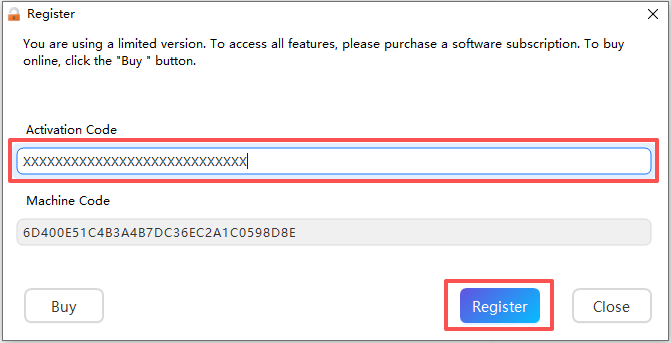
Open the License or Activation window.
Step 3
Enter your license key exactly as provided.
License keys are case-insensitive and can be copied directly from your purchase email.
Step 4
Click Activate.
The software will connect to the licensing server and verify your subscription.
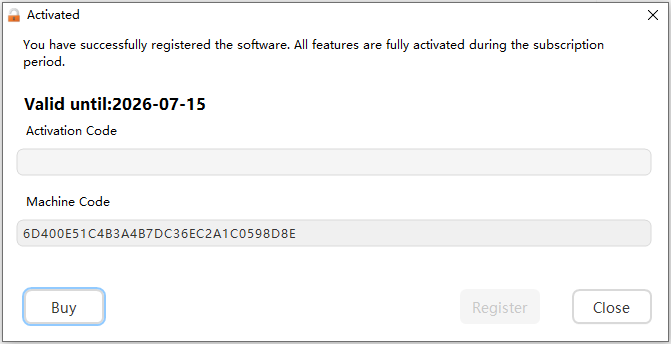
Once activation is successful, all premium features become immediately available.
License Status
After activation, you can view your license information, including:
- License Status
- Subscription Plan
- Expiration Date
This information is available from the License page inside the software.
Renew Your Subscription
GoogleMapsLead is available as a subscription.
During your active subscription, you receive:
- All software updates
- New features
- Performance improvements
- Technical support
When your subscription expires, simply renew your license to continue receiving updates and support.
Returning customers receive a 20% renewal discount.
Transfer Your License
Each license is intended for use on one computer at a time.
If you replace your computer:
- Contact the OK-Soft support team.
- Provide your license key.
- Request a license transfer.
Active subscribers are eligible for one free license transfer per year.
Internet Connection
License activation requires an active Internet connection.
After successful activation, the software can continue operating normally according to your subscription status.
Frequently Asked Questions
Do I need to activate the software every time I start it?
No.
Activation is only required once for each computer unless you reinstall Windows or replace your device.
Can I use one license on multiple computers?
No.
Each subscription license can only be activated on one computer at a time.
If you purchase additional licenses, you can activate the software on multiple devices.
What happens when my subscription expires?
The software will no longer receive updates or technical support.
To continue using the latest version and premium features, simply renew your subscription.
I changed my computer. What should I do?
Contact our support team to transfer your license.
One free transfer is included each year for active subscribers.
I lost my license key.
Please contact our support team using the email address you used during your purchase.
We'll help you retrieve your license information.
Troubleshooting
Activation Failed
If activation fails:
- Check your Internet connection.
- Verify that your license key is entered correctly.
- Make sure you're using the latest version of GoogleMapsLead.
- Temporarily disable firewall or antivirus software if it blocks the connection.
If the issue persists, contact our support team.
Invalid License Key
If you receive an Invalid License Key message:
- Check for extra spaces before or after the key.
- Ensure you copied the complete license key.
- Verify that you are activating the correct product.
Unable to Connect to the License Server
Possible causes include:
- Network connectivity issues
- Firewall restrictions
- Corporate proxy settings
- Temporary server maintenance
Please try again later or contact support if the problem continues.
Need Help?
If you're experiencing activation problems that cannot be resolved using this guide, our support team is ready to help.
Please include the following information when contacting us:
- License Key (or Order Number)
- GoogleMapsLead Version
- Windows Version
- Screenshot of the Error Message (if available)
Providing these details helps us resolve your issue more quickly.